
Tablet App Menus and How to Use Them
If you press on an app on your tablet's home screen, a menu will pop up. When preparing for this article, I noticed that there are very few differences with app menus on iPads and Android tablets, although Apple offers a few extra features for their own apps. However, third-party apps seem to have the same menus across platforms even when the apps function differently on iPads and Android tablets. Since the app menus are so similar for both types of tablets, I've created just one article for this topic.
I've broken this article into sections for menu options that probably appear on all app menus on all tablets, options that usually appear on every menu for iPads and for Android tablets, and options that appear on most writing apps. I tested all of the app menus on my tablets and found that very few have menu options beyond the ones in these sections. You might want to check the menus for apps you have installed on your tablet and see which ones are useful for you.
Contents
Common Menus iPad Specific Menus Android Specific Menus Writing App Menus
Common Menus
Most tablets probably have one function on all app menus. There should be an icon for removing an app from the home screen. On my Lenovo M11 this icon is the letter “X”. When you touch the X, the app icon will immediately be removed from your home screen.
On the iPad, you'll see the option Remove App. This will bring up a second menu that lets you remove the app from the home screen or uninstall the app from your tablet. Samsung tablets also let you remove or uninstall an app using its menu. However, with a Lenovo tablet, you might need to click the icon with the letter i in a circle. When this option is selected, the settings app opens to the page for the app. It's then possible to uninstall the app from the tablet.
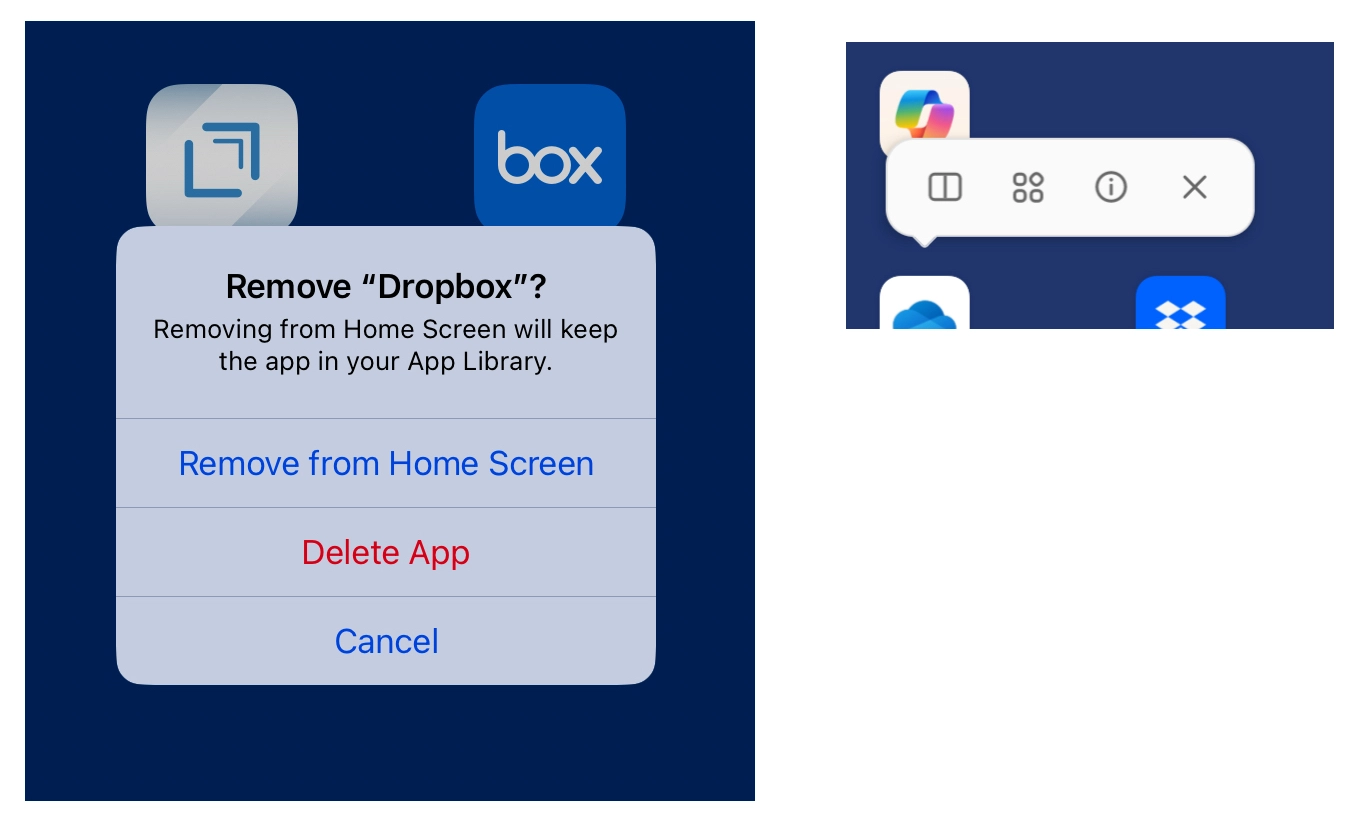
If you accidentally remove the app from the home screen, you can easily add it back to the home screen by dragging it from the all apps window on an Android tablet or from the App Library on an iPad.
iPad Specific Menus
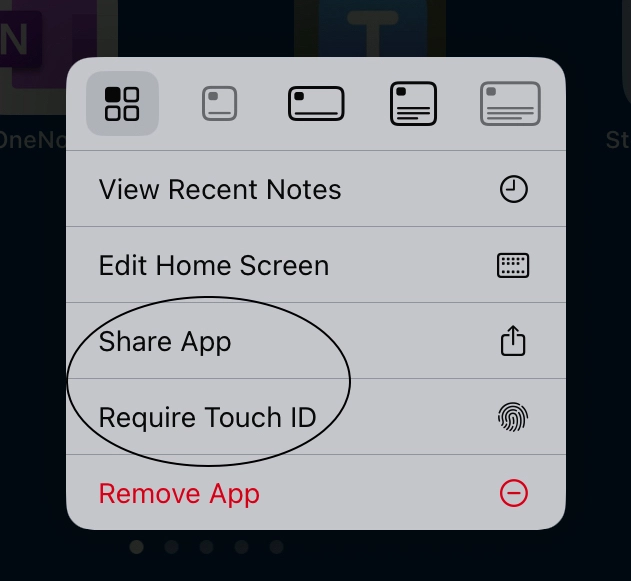
iPads have an option that appears on all app menus. You can edit the arrangement of apps and widgets on your home screen by selecting "Edit home screen" from any app menu.
iPadOS 18 added a new option to the menus for third-party apps and some Apple apps. The Share App option opens the iPad's share sheet and you can then send a link for the app's page on the iPad App Store to a friend. This option is obviously a marketing strategy for Apple, and a way to gain more income from iPad users.
Another new option that is on most iPad apps is Require Touch ID. This option is clearly to aid in privacy for some people, especially those who might share their iPad with others. It lets an iPad user lock and unlock an app with their fingerprint. I'd recommend using this with caution, particularly if your iPad's touch ID feature doesn't always work consistently.
Android Specific Menus
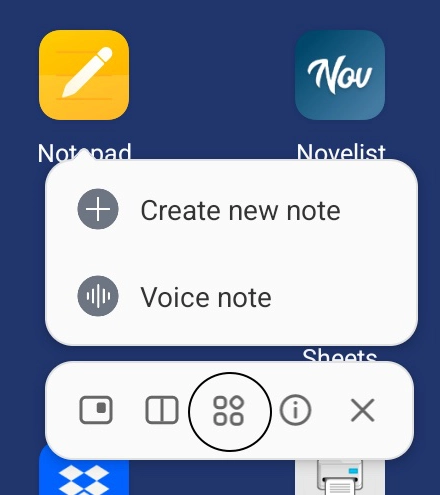
On an Android tablet some app menus might have an icon with four small circles in the corners of a square. Touching that icon will open the widget option for the app. You can then add the app's widget to your home screen.
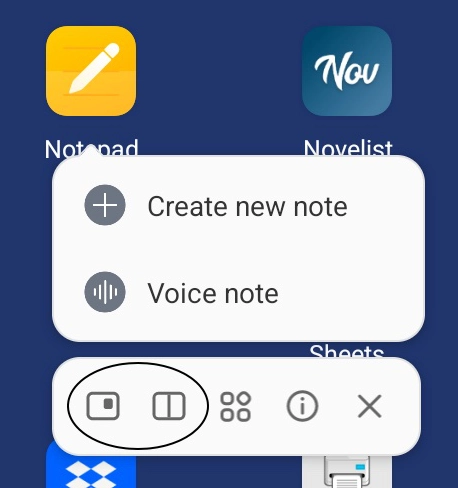
There are two options for most app menus that probably are on all or most Lenovo tablets. If you touch the icon that looks like an open book, the app will open in a split screen window. Touching the icon with a small black square in the top right corner will open the floating window sidebar. I find these to be very convenient options, but they might be specific only to Lenovo tablets.
Writing App Menus
If you use a writing app on your tablet, you'll probably find several app specific options on the app's menu. Most writing apps will have an option to create a new note or a new document. Basic writing apps, like notepads, may also include an option to create a new voice note or create a list.
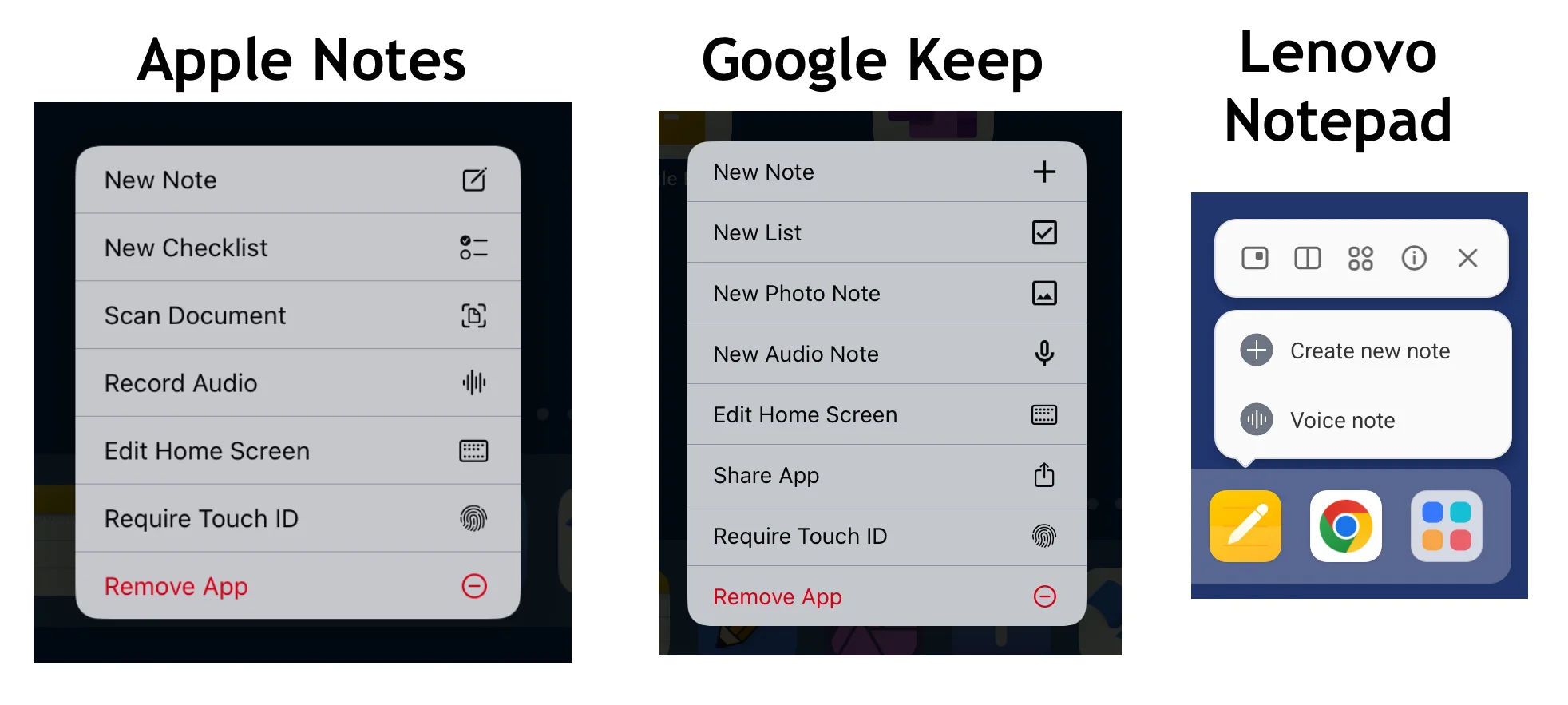
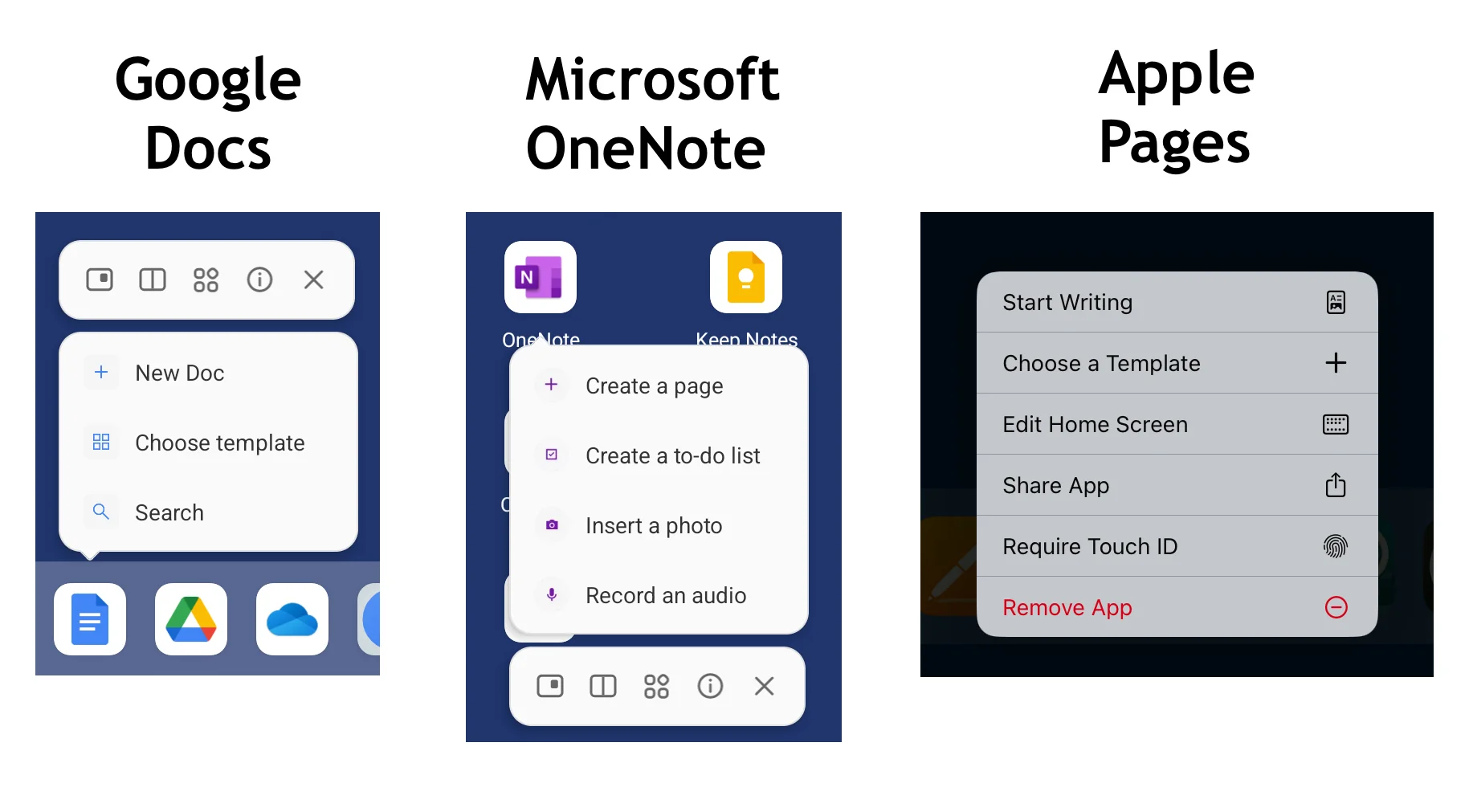
More advanced writing apps, like Google Docs or Microsoft OneNote, might include options for searching or adding photos to a document. iPad writing apps might also show you a list of documents you recently used with the app.
In most cases, app menu options open the app, rather than just letting you access the feature from the home screen. This makes them less useful than an interactive widget that lets you actually perform an app function without opening the app. However, in my experience with widgets, very few actually have interactive features. I find app menus more useful, particularly when they open the app to a particular feature of the app that might take a few steps to access when opening the app directly. For example, I like the "orders" option on the Amazon shopping app because it takes me directly to the screen where I can track my orders. Test some of the app menus on your apps and see if you find them useful.
If you found this article interesting, please share the link to it with a friend: Tablet App Menus and How to Use Them.